
- Habilitamos SSH para facilitar los comandos
# Instalar el servidor OpenSSH
Add-WindowsCapability -Online -Name OpenSSH.Server~~~~0.0.1.0

# Iniciar el servicio
Start-Service sshd

# Que inicie automáticamente con Windows (NO SE EJECUTA)
Set-Service -Name sshd -StartupType 'Automatic'

# Abrir el puerto 22 en el firewall
New-NetFirewallRule -Name sshd -DisplayName 'OpenSSH Server' -Enabled True -Direction Inbound -Protocol TCP -Action Allow -LocalPort 22- Habilitamos TPM
reg add "HKLM\SYSTEM\Setup\MoSetup" /v AllowUpgradesWithUnsupportedTPMOrCPU /t REG_DWORD /d 1 /f
reg add "HKLM\SYSTEM\Setup\LabConfig" /v BypassTPMCheck /t REG_DWORD /d 1 /f
reg add "HKLM\SYSTEM\Setup\LabConfig" /v BypassSecureBootCheck /t REG_DWORD /d 1 /f
reg add "HKLM\SYSTEM\Setup\LabConfig" /v BypassRAMCheck /t REG_DWORD /d 1 /f- Descargamos el instalador
powershell
mkdir C:\temp -Force
# Descargar Media Creation Tool
Invoke-WebRequest -Uri "https://go.microsoft.com/fwlink/?linkid=2156295" -OutFile "C:\temp\MediaCreationTool.exe"- Vamos a c:/temp y ejecutamos MediaCreationTool.exe
- En la seleccion de Flash USB o ISO seleccionamos ISO y lo guardamos en c:/temp
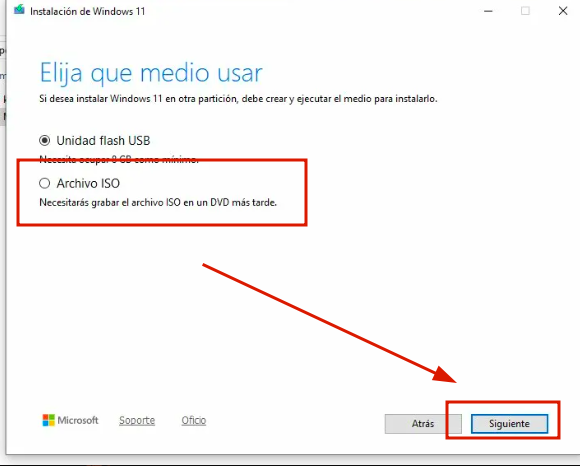
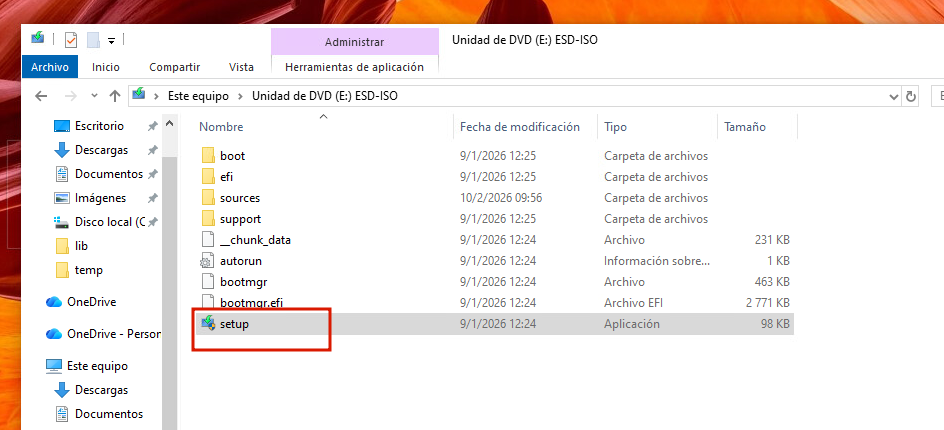
- Luego de guardar le damos doble clic al iso en c:/temp y windows lo monta y le damos clic al setup.exe
- Si brinda el error
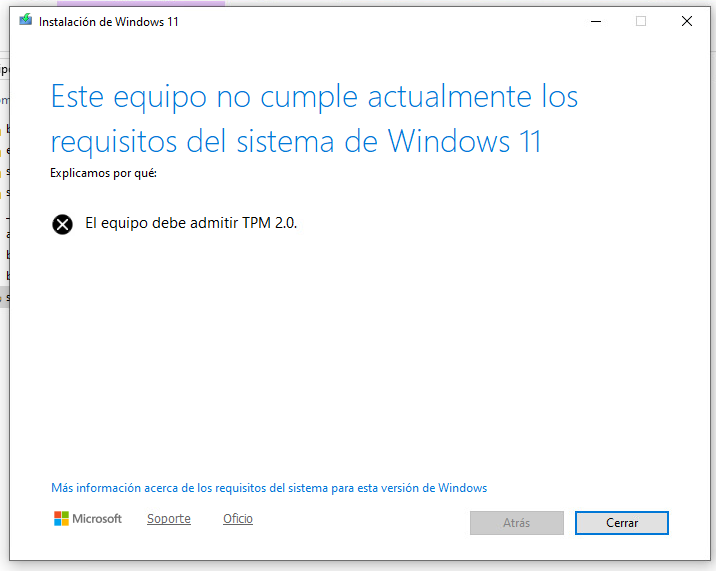
- Debemos apagar la MV
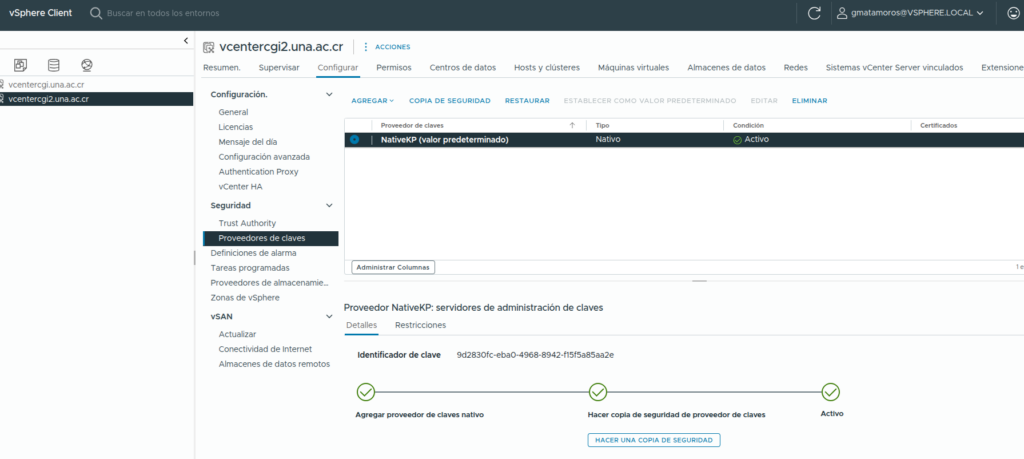
- y en el centro de datos agregamos una llave nativa
- Debemos notar que la MV donde estamos creando la llave es vcentercgi2.una.ac.cr por tanto esto debemos hacerlo desde https://vcentercgi2.una.ac.cr
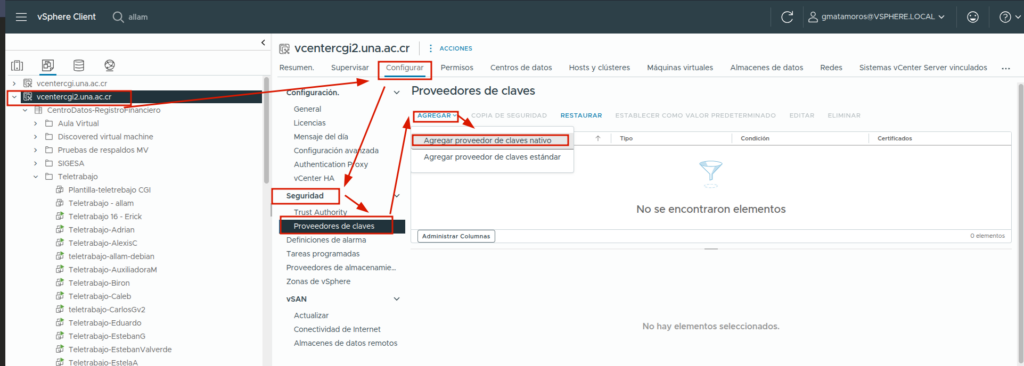
- Le ponemos de nombre
NativeKP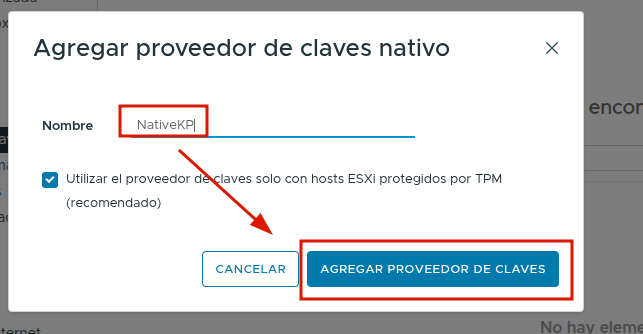
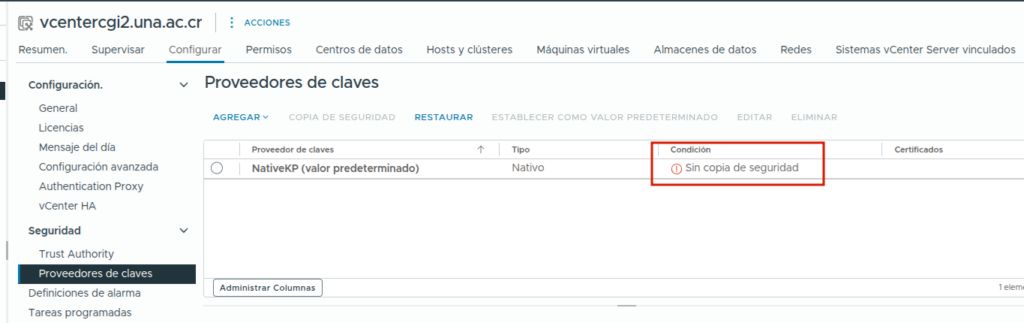
- Nos indica que no tiene copia de seguridad
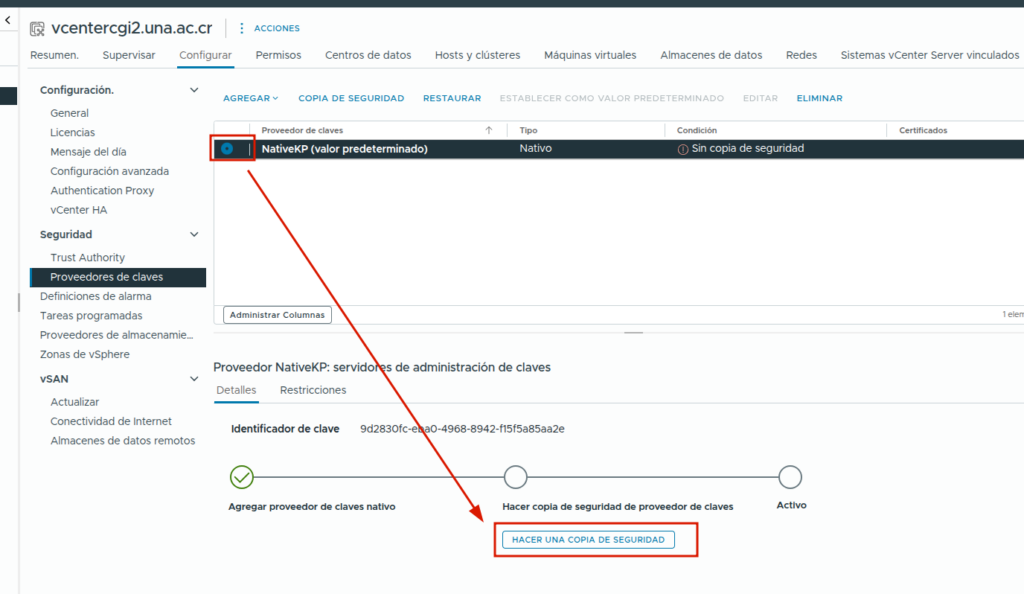
- La marcamos
- Si nos da el siguiente error «Enhanced Linked Mode» es por que la hicimos en vcentercgi2.una.ac.cr y estamos usando vcentercgi.una.ac.cr
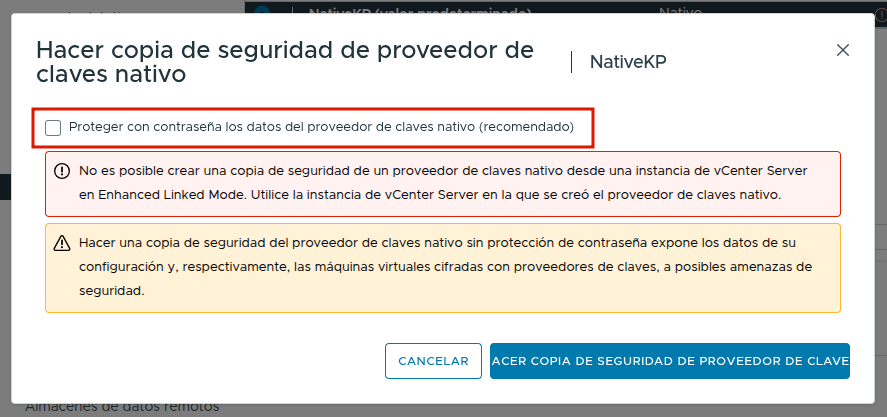
- le ponemos la constraseña ac12
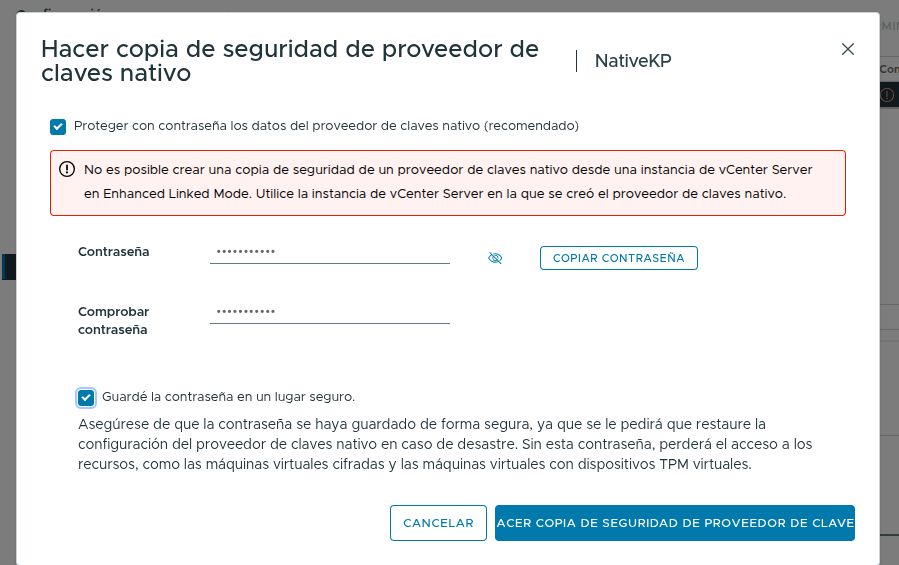
- Ponemos la clave y marcamos
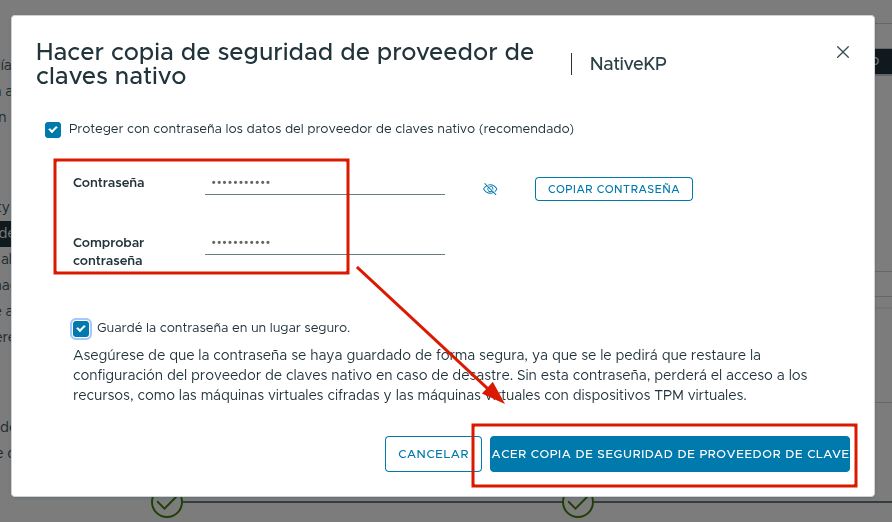
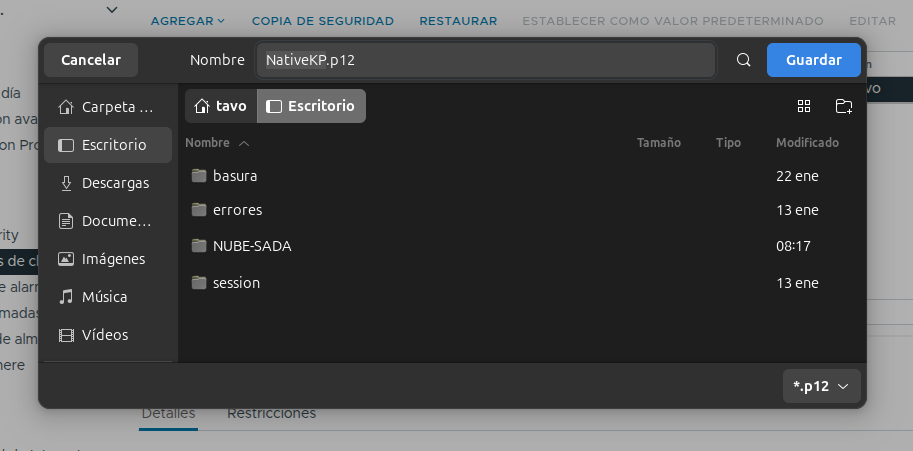
- La guardamos en teams
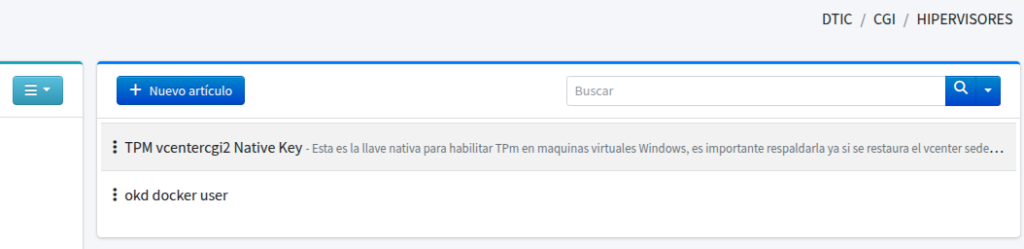
- Se configura de manera correcta
Agregar TPM a MV
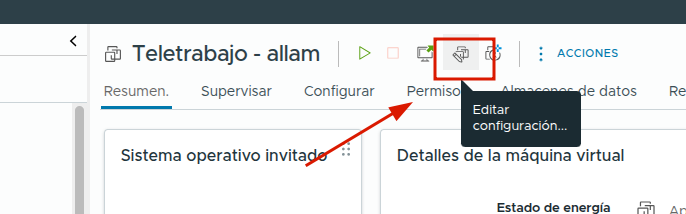
- Buscamos la MV a trabajar y la apagamos
- Vamos a configuración
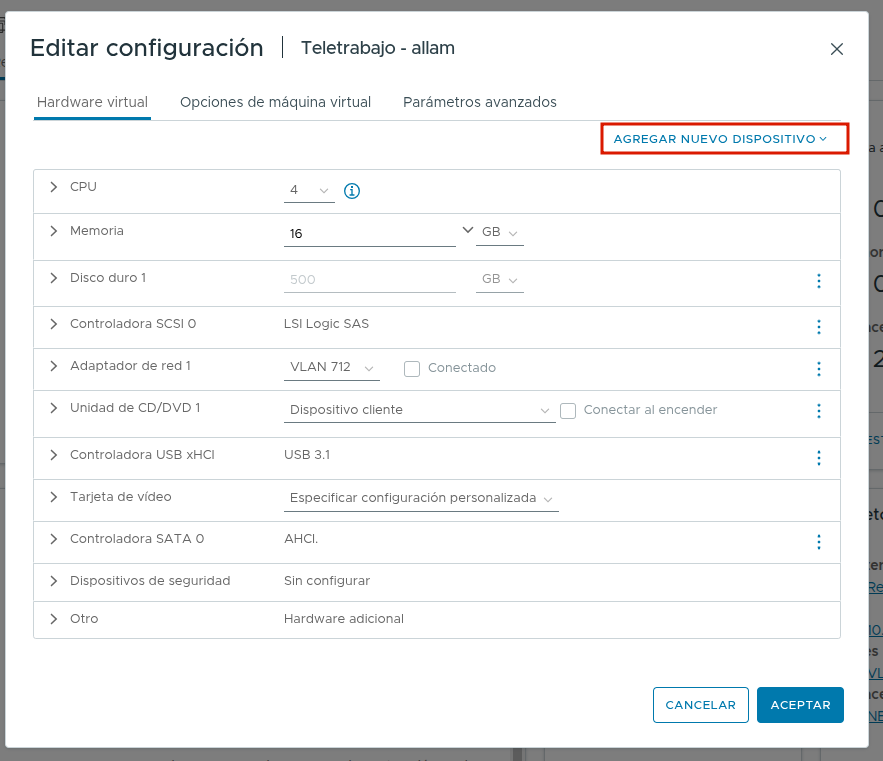
- Agregar nuevo dispositivo
- Módulo de plataforma de confianza
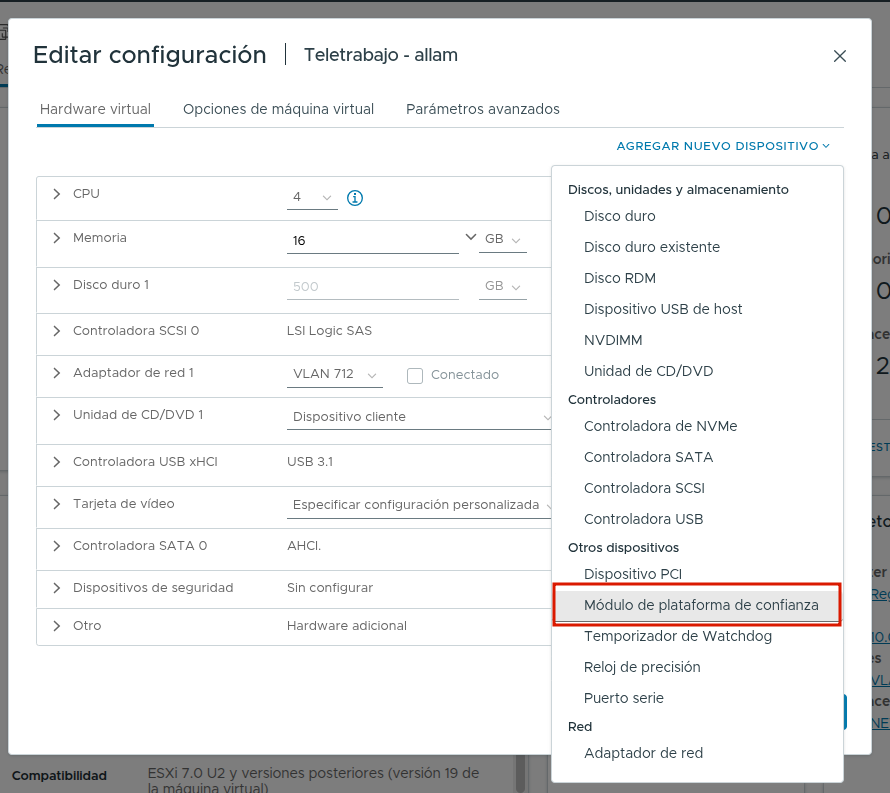
- Y se agrega
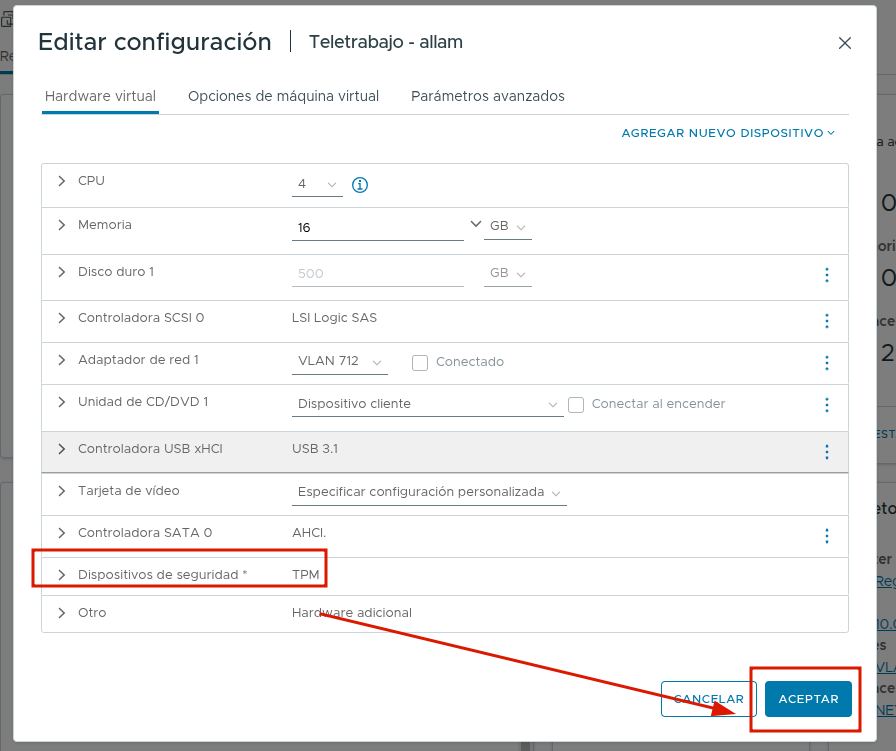
- Encendemos la MV
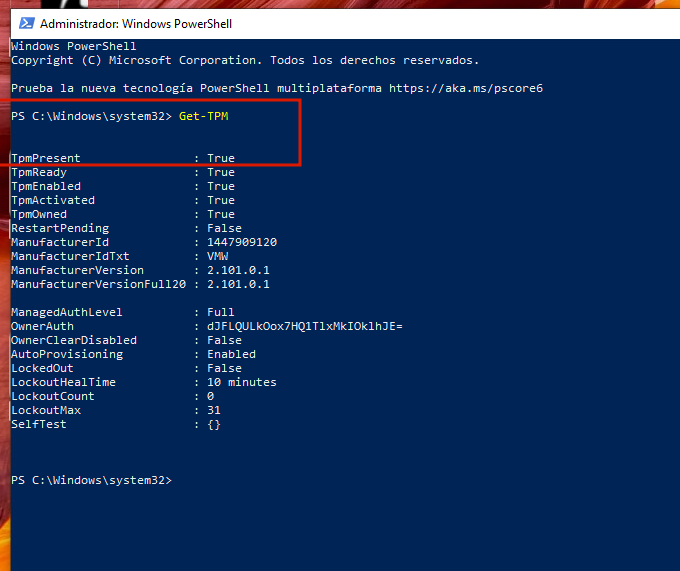
- Y ya sea en powershell o desde ssh con powershell ejecutamos para ver si esta habilitado
powershell
Get-TPM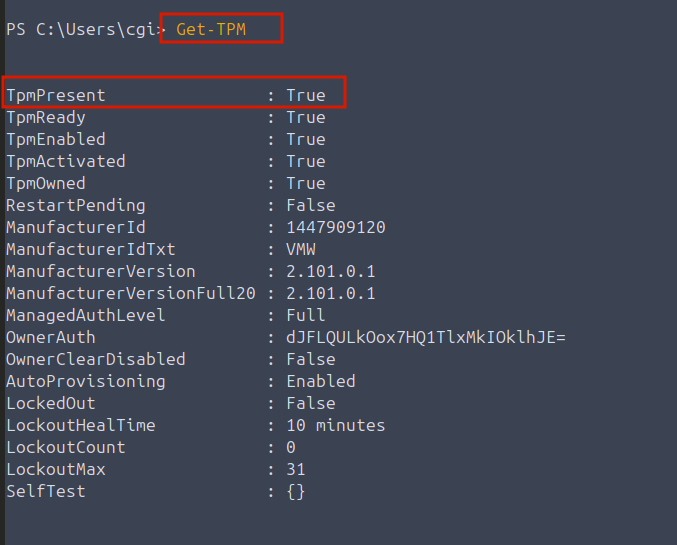
- Volvemos a ejecutar el instalador
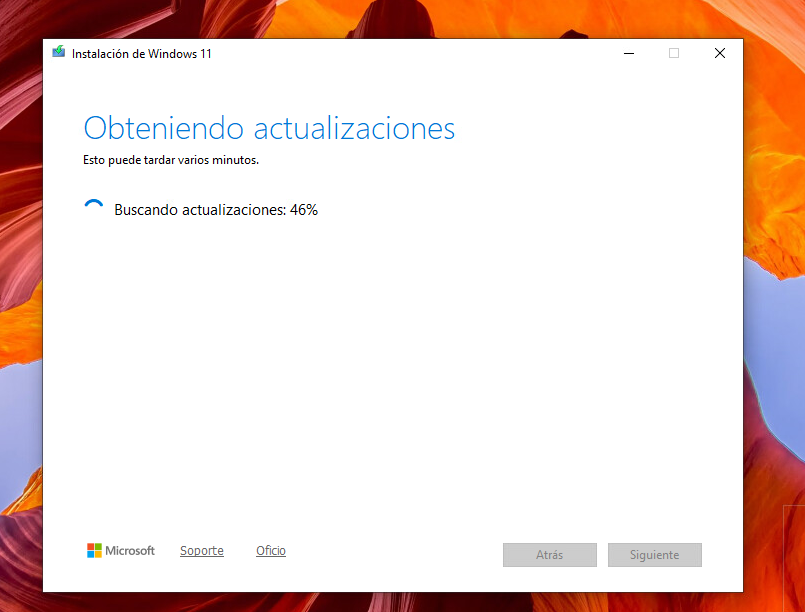
- Si dice que no cumple con los requisitos le damos -> Actualizar
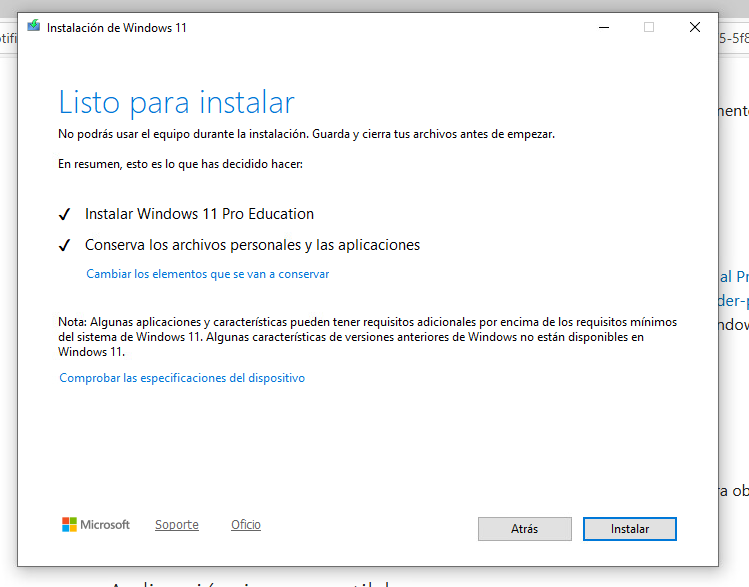
- Y luego desde la terminal ejecutar
reg add "HKLM\SOFTWARE\Policies\Microsoft\Windows NT\Terminal Services" /v UserAuthentication /t REG_DWORD /d 0 /f
reg add "HKLM\SOFTWARE\Policies\Microsoft\Windows NT\Terminal Services" /v SecurityLayer /t REG_DWORD /d 0 /f
gpupdate /force
net stop TermService /y
net start TermService